How to Download an EPUB File and Upload It to Your Kindle
This guide walks you through every method — from the simplest “Send to Kindle” button to the old‑school USB transfer. Whether you’re tech‑savvy or brand new to sideloading, you’ll find a method that works for you.
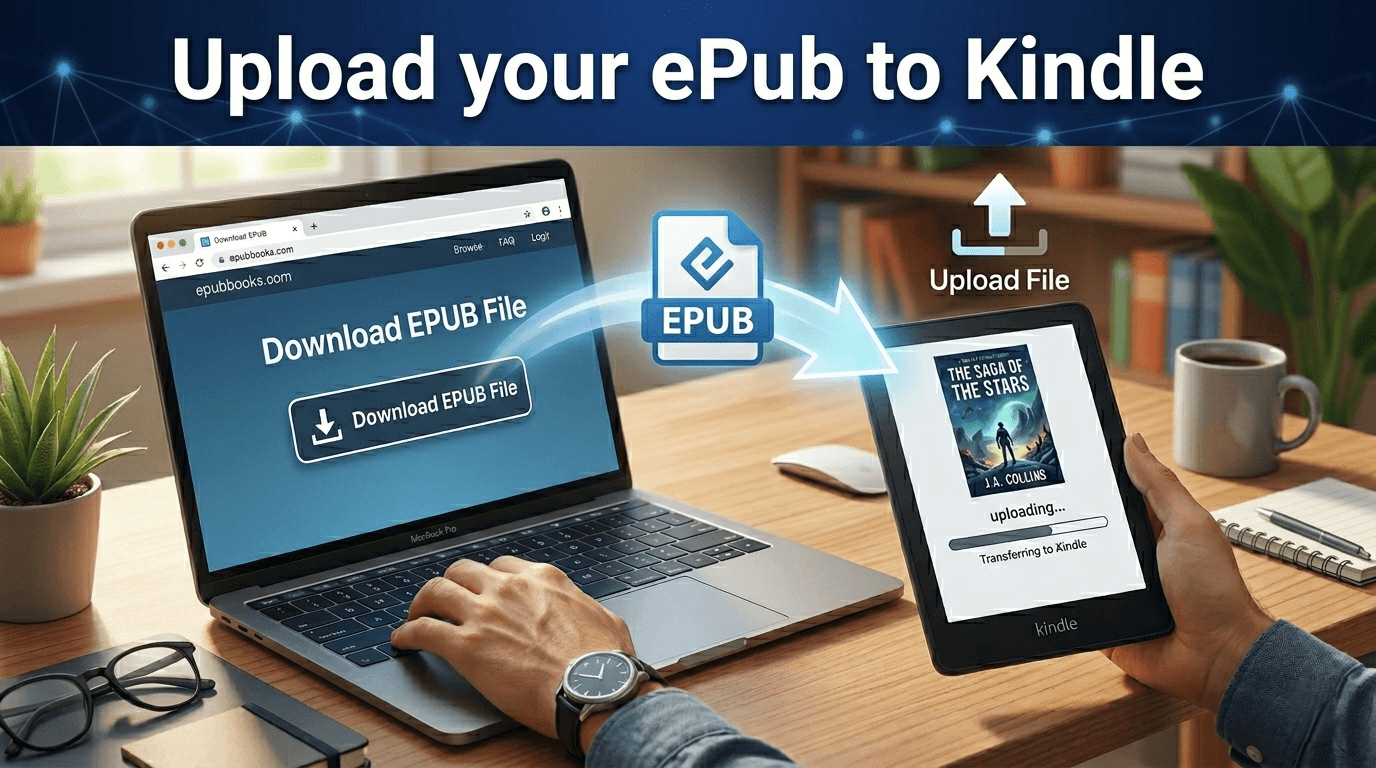
How to Download an EPUB File and Upload It to Your Kindle (Every Method Explained)
For years, Kindle devices only supported Amazon’s proprietary MOBI format. That meant readers had to convert EPUB files before they could enjoy them on a Kindle. Thankfully, that changed — modern Kindle devices now support EPUB through Amazon’s Send‑to‑Kindle system, making the process easier than ever.
Still, many readers aren’t sure how to get an EPUB file onto their Kindle, especially when downloading directly from an author’s website, a reader magnet, or a digital bookstore outside Amazon.
This guide walks you through every method — from the simplest “Send to Kindle” button to the old‑school USB transfer. Whether you’re tech‑savvy or brand new to sideloading, you’ll find a method that works for you.
Step 1: Download the EPUB File to Your Device
Before you can upload anything to your Kindle, you need the EPUB file saved locally.
On a computer (Windows or Mac):
Click the download link provided by the author or store.
Choose Save File when prompted.
Save it somewhere easy to find — your Downloads folder is fine.
On a phone or tablet:
iPhone/iPad:
Tap the download link.
The file will appear in Files → Downloads.
Android:
Tap the link.
The file will save to Files → Downloads or your browser’s download folder.
Once the EPUB is downloaded, you’re ready to send it to your Kindle.
Method 1: Send to Kindle (The Easiest Method)
Amazon now supports EPUB through its Send to Kindle system. This is the fastest, cleanest, and most reliable method for most readers.
You can use Send to Kindle in three ways:
Option A: Email the EPUB to Your Kindle Address
Every Kindle has a unique email address ending in @kindle.com.
Find your Kindle email address:
Go to Amazon.com → Account → Manage Your Content and Devices.
Click Devices.
Select your Kindle.
Look for Send‑to‑Kindle Email.
Send the EPUB:
Open your email app.
Attach the EPUB file.
Send it to your Kindle email address.
Make sure the sending email is approved in your Amazon settings (Amazon will prompt you if it’s not).
Within a minute or two, the book appears on your Kindle.
Why this method is great:
No cables
No apps
Works on all devices
Amazon automatically converts the EPUB
Option B: Use the Send to Kindle Website
Amazon offers a drag‑and‑drop uploader:
👉 https://www.amazon.com/sendtokindle Open Send to Kindle
How to use it:
Visit the link above.
Sign in to your Amazon account.
Drag your EPUB file into the upload box.
Choose which Kindle device to send it to.
Click Send.
Your book appears on your Kindle shortly after.
Option C: Use the Send to Kindle App (Desktop or Mobile)
Amazon provides apps for Windows, Mac, iOS, and Android.
How it works:
Install the app.
Drag your EPUB into the app window.
Choose your Kindle device.
Click Send.
This is ideal if you sideload books frequently.
Method 2: Use the Kindle App (iOS or Android)
If you read on the Kindle app instead of a physical Kindle, you can import EPUB files directly.
On iPhone/iPad:
Download the EPUB.
Tap Share.
Choose Kindle from the share sheet.
The Kindle app will import and convert it.
On Android:
Download the EPUB.
Open the Kindle app.
Tap More → Send to Kindle.
Select the EPUB file.
This method is perfect for mobile‑only readers.
Method 3: Convert the EPUB Using Calibre (Advanced Users)
Calibre is a free ebook management tool that lets you convert and organize your library.
Why use Calibre?
You want full control over metadata
You want to edit the book’s cover or description
You want to convert EPUB → MOBI/AZW3 for older Kindles
You want to manage a large ebook library
How to use Calibre:
Download Calibre (free) at https://calibre‑ebook.com.
Open Calibre and click Add Books.
Select your EPUB file.
Click Convert Books.
Choose MOBI or AZW3 (for older Kindles).
Connect your Kindle via USB.
Click Send to Device.
This method is more technical but gives you the most customization.
Method 4: Manual USB Transfer (Old‑School but Reliable)
If you prefer not to use Amazon’s cloud services, you can sideload the EPUB manually.
Important:
Kindle devices cannot read EPUB files directly via USB.
You must convert the EPUB to MOBI or AZW3 first (Calibre does this).
Steps:
Convert the EPUB using Calibre (see above).
Connect your Kindle to your computer with a USB cable.
Your Kindle will appear like a USB drive.
Open the Documents folder.
Drag the converted file into the folder.
Safely eject your Kindle.
The book will appear in your library immediately.
Why use USB transfer?
No Wi‑Fi required
No Amazon account needed
Works for offline or private libraries
Method 5: Use a Cloud Storage App (Workaround Method)
Some readers prefer using cloud storage apps like Dropbox or Google Drive.
How it works:
Upload the EPUB to Dropbox/Drive.
Open the file on your phone or tablet.
Tap Share → Kindle (iOS) or Open with → Kindle (Android).
This method still uses Amazon’s conversion system behind the scenes.
Troubleshooting: Why Isn’t My EPUB Showing Up?
If your book doesn’t appear on your Kindle, try these fixes:
1. Your Kindle email address isn’t approved
Amazon only accepts files from approved email addresses.
Fix:
Go to Manage Your Content and Devices → Preferences → Personal Document Settings
Add your email under Approved Personal Document E‑mail List.
2. Your Kindle isn’t connected to Wi‑Fi
Send‑to‑Kindle requires Wi‑Fi.
Fix:
Turn on Wi‑Fi and sync your Kindle.
3. The file is too large
Amazon limits personal document sizes (usually around 50MB).
Fix:
Compress images using Calibre or request a smaller file.
4. You tried to USB‑transfer an EPUB
Kindles cannot read EPUB files directly.
Fix:
Convert to MOBI/AZW3 using Calibre first.
5. You’re using an older Kindle
Some older models require MOBI instead of EPUB.
Fix:
Convert the file using Calibre.
Which Method Should You Use? (Quick Guide)
Fastest and easiest:
Send to Kindle (email or website)
Best for mobile readers:
Share → Kindle app
Best for power users:
Calibre conversion + USB transfer
Best for offline use:
USB transfer
Best for frequent sideloaders:
Send to Kindle desktop app
Final Thoughts: EPUB + Kindle Is Easier Than Ever
Amazon’s support for EPUB has made life much easier for readers and authors. Whether you’re downloading a reader magnet, buying direct from an author, or grabbing a freebie from a digital library, you now have multiple simple ways to get that EPUB onto your Kindle.
The key takeaway:
Use Send‑to‑Kindle whenever possible — it’s fast, automatic, and works on every device.
But if you prefer full control, Calibre and USB transfer are still excellent options.
· Ready to start your business? ·
Own your author business starting today
Keep 100% of every sale and own every reader relationship — no middleman.
Get Started Free