How to upload ePub files to your Nook readers.
Barnes & Noble does not provide a custom email address or web portal to wirelessly upload personal ePubs to their cloud servers for syncing across your Nook library. However, because Nook devices natively support the ePub format, getting them onto your device is very straightforward using physical or alternative wireless workarounds.
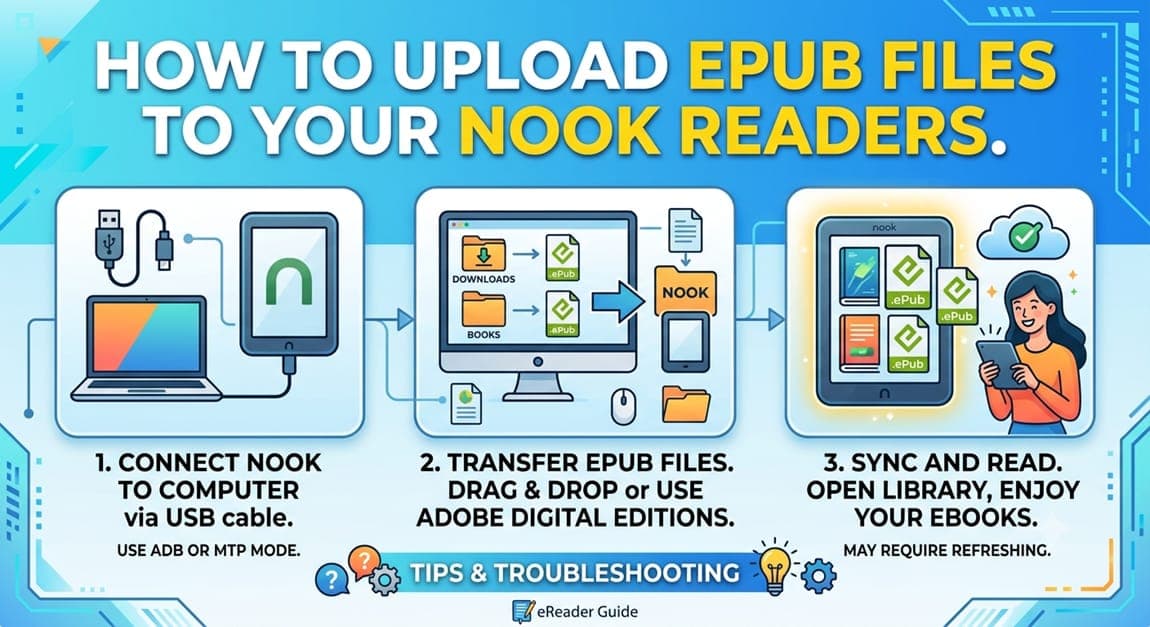
No, there is no official wireless cloud delivery system for Nook devices like Amazon’s "Send to Kindle" service. Barnes & Noble does not provide a custom email address or web portal to wirelessly upload personal ePubs to their cloud servers for syncing across your Nook library.
However, because Nook devices natively support the ePub format, getting them onto your device is very straightforward using physical or alternative wireless workarounds.
Option 1: The Standard USB "Sideload" Method (Most Reliable)
The most common way to transfer personal, DRM-free ePub files to your Nook is by plugging it directly into a computer.
Connect your Nook to your PC or Mac using its USB cable.
Unlock your Nook screen. If a prompt appears on the reader asking to turn on USB/Connect mode, tap Connect.
Open the Nook drive on your computer (it will appear like a USB thumb drive under "My Computer" on Windows or on your Finder sidebar on a Mac).
Drag and drop your ePub files into the folder named My Files, Books, or directly onto the root folder.
Safely eject the Nook from your computer before unplugging the cable. Your books will appear under the Library or My Documents section.
Note for Mac Users: If you are using a newer Mac and a modern Nook GlowLight device, you may need to download a free file transfer utility (like Android File Transfer or Nook Connect drivers) to see the Nook’s internal folders.
Option 2: Use Calibre (Best for Library Management)
If you have a large collection of ePubs, the free desktop library software Calibre is highly recommended.
Simply plug your Nook into your computer, open Calibre, select your ePubs, and click Send to Device. Calibre automatically handles the folder placement and updates the book data perfectly.
Option 3: Wireless Transfer via the Nook's Web Browser
If your Nook model has a built-in web browser and you absolutely want a wireless method without a computer, you can use a free, browser-based file-sharing tool:
On your Nook, open the web browser and go to a free file-dropping site like Send Anywhere or Send.j.se.
On your phone or computer, go to the same website and upload your ePub file.
Enter the generated numeric key or code into your Nook's browser to download the file directly over Wi-Fi.
Key Limitation to Keep in Mind
Unlike Kindle, books that you manually add to your Nook using these methods will not sync your reading progress (current page or notes) with the Nook smartphone app. They reside locally on that specific device only.
· Ready to start your business? ·
Own your author business starting today
Sell books from your own site and keep every reader's email address.
Get Started Free